Theme Installation ↑ Back to Top
Please, read the whole section, before attempting to install the theme.
it is recommend to always backup your system before making any upgrades or changes!
it is recommend to always backup your system before making any upgrades or changes!
Installation↑ Back to Top
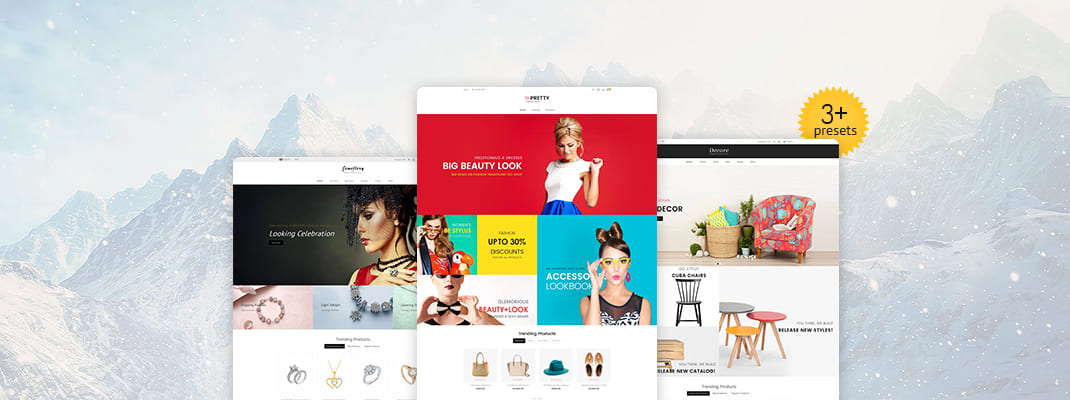
- Go to "Design -> Theme Store"- Here three variants are available of "bepretty theme"
1. Fashion(default)
2. Decore
3. Jewellery
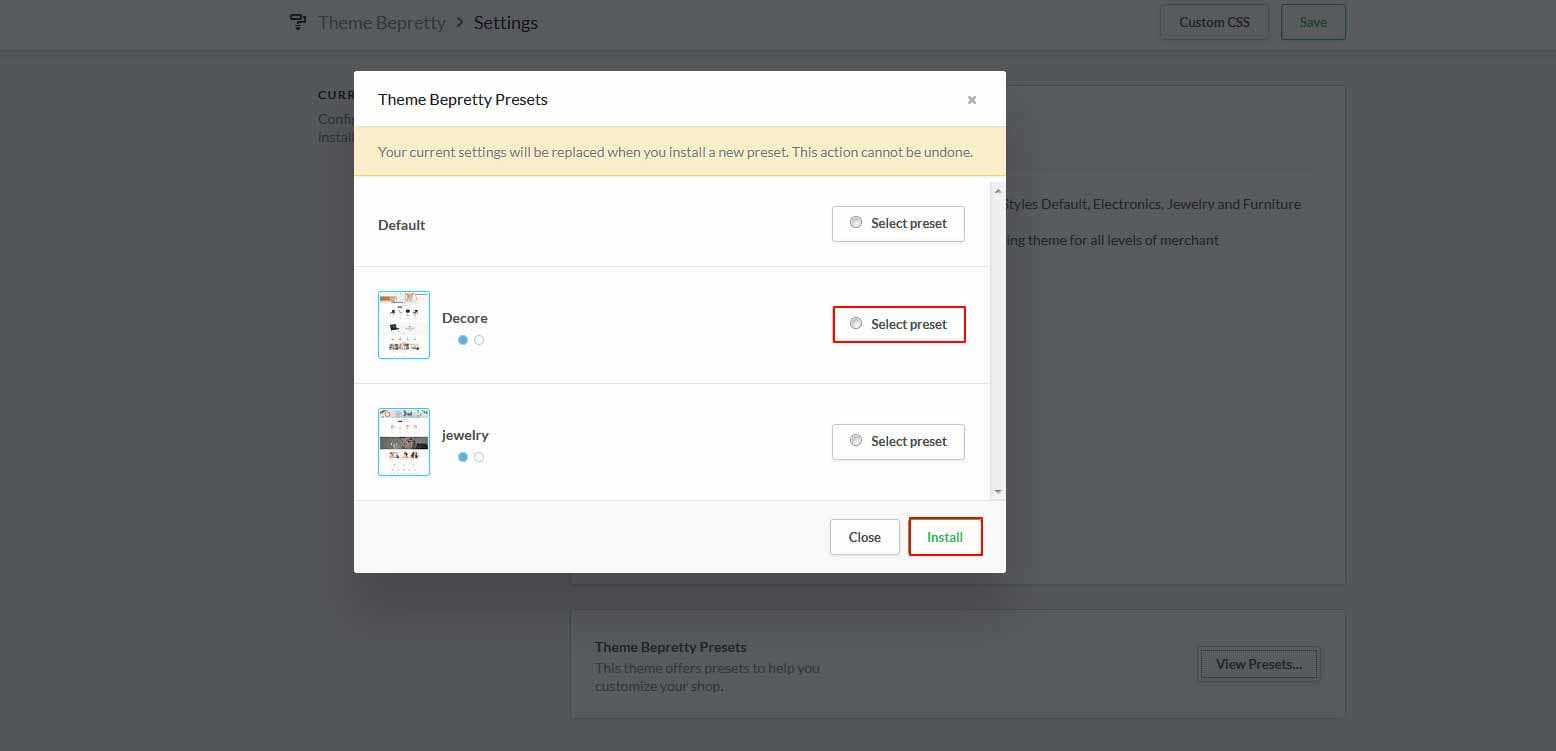
Here you will see 3 variants presets in Design -> Theme Editor -> Theme Settings -> View presets than after select any presets that you want to apply your theme store and click on install button. By default, Fashion preset is installed.
Featured Products↑ Back to Top
- Go to "Design -> Featured Products", Here you will see number of products are available.- Click on "Add Product" button at top-right corner, and choose product that you want to assign as featured product.


Blogs↑ Back to Top
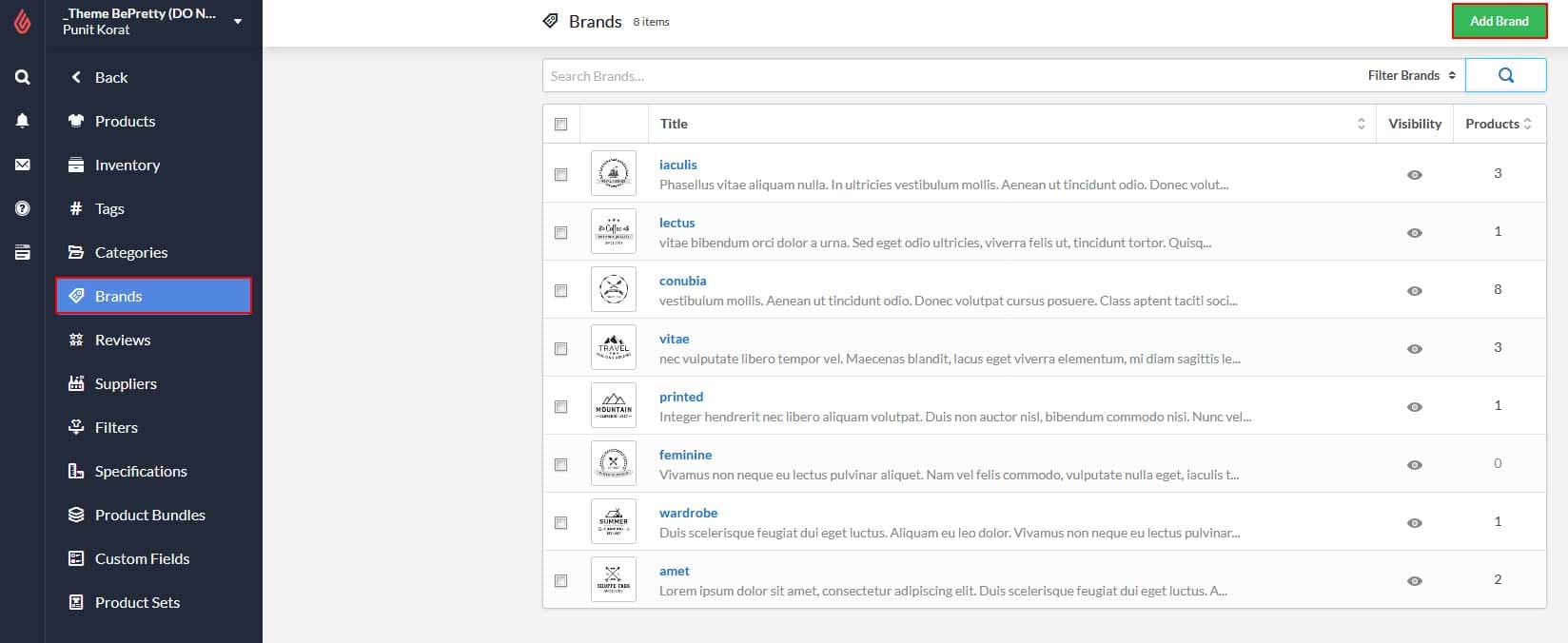
To add blog go to backoffice -> "Blogs".Click on "Add a blog" button.

and blog image size must be (870px x 564px).

Theme customize Setting↑ Back to Top
for theme customization, go to Design -> theme settings
1. Background↑ Back to Top
Background section contains all changes about to the body background, header, navigation nd footer.
2. Button↑ Back to Top
Button section contains changes about to the all buttons in theme store.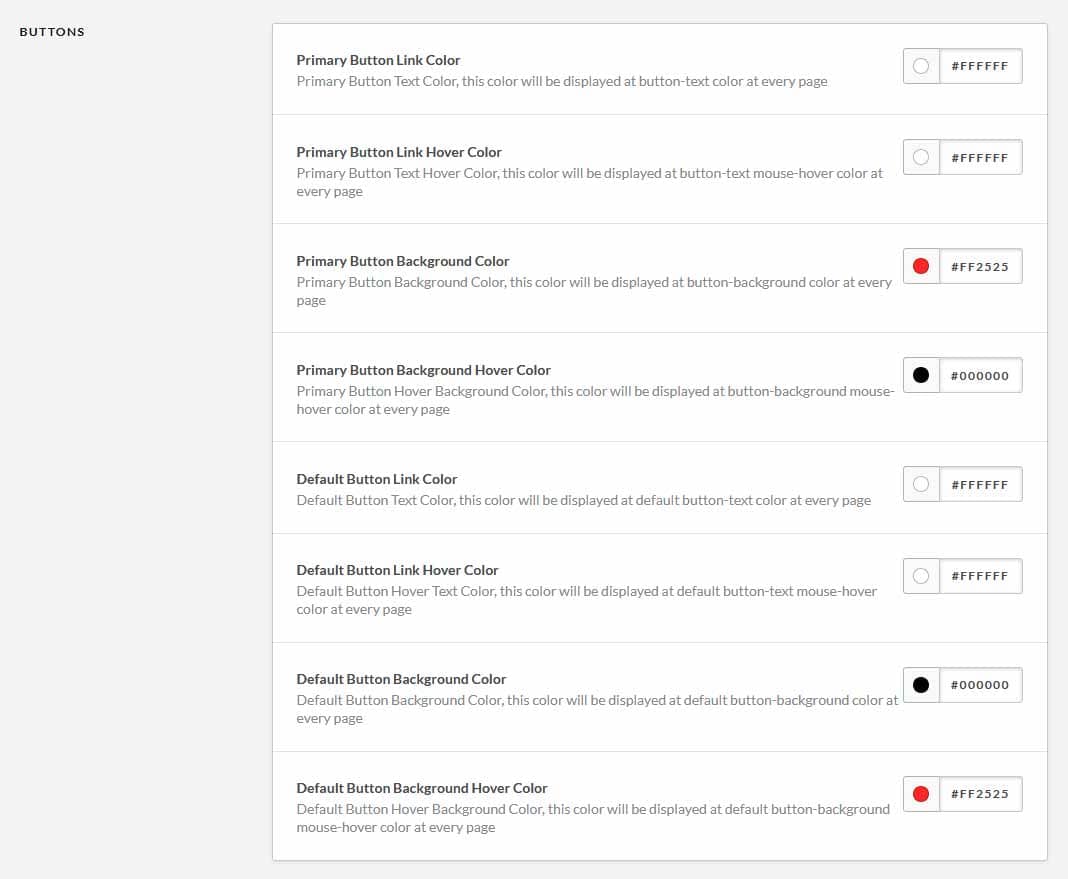
3. Typography↑ Back to Top
- Typography section contains changes about to the fonts available in theme store.- To set theme heading font, body font, highlight, nav, button, top bar, footer, header colors.

4. Presets Menu↑ Back to Top
Default Menu settings.- this preset menu settings contains preset image, URL, title.

5. Slider↑ Back to Top
Default homepage slider settings.- this settings contains slider image, URL, title, subtitle and title, subtitle color. (slider image size must be 1903px x 800px)
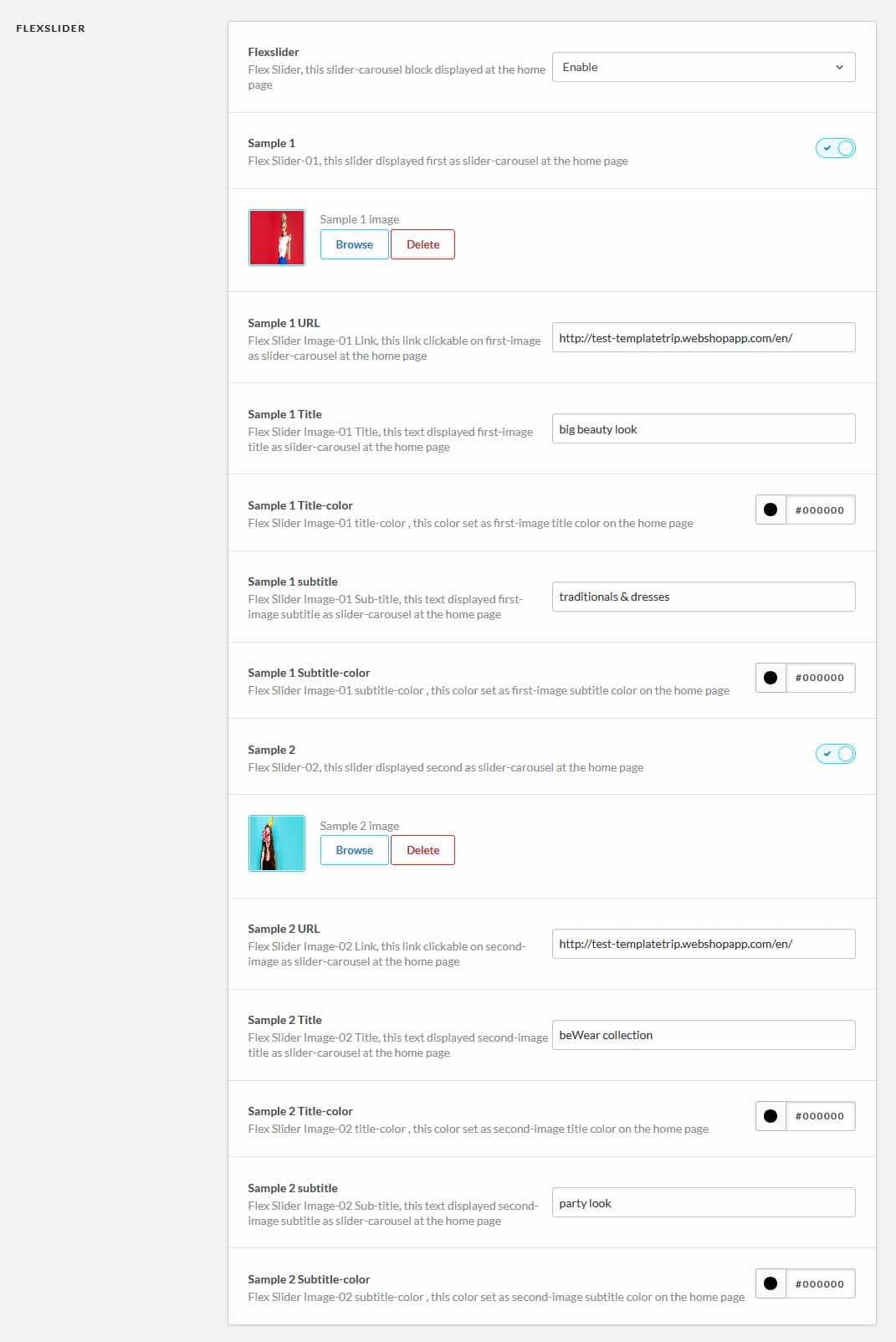
6. CMS Banner↑ Back to Top
CMS banner contains seetings related to banner.- CMS banner added banner image, URL, title, subtitle, description text, text that you can modified as per your requirement.
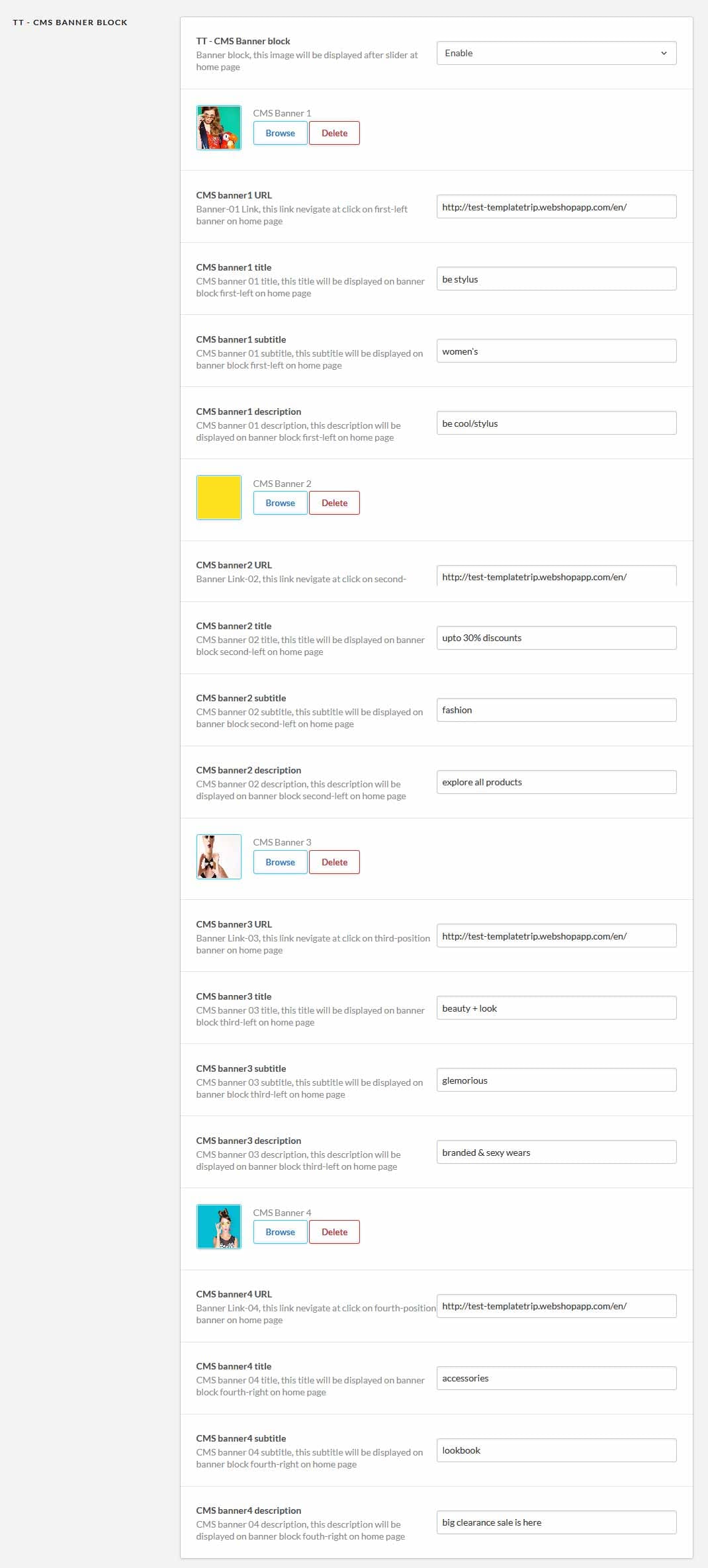
2) banner2 image size: 476px x 476px
3) banner3 image size: 952px x 400px
4) banner4 image size: 952px x 876px
7. Testimonial Block↑ Back to Top
Testimonial Block contains seetings related to testimonials.- testimonial block added background image of testimonial, customer image, customer name, customer designation, cutomer review text.

2) customer image size: 80px x 80px
8. Services Block↑ Back to Top
Services Block contains seetings related to Services.- it added service image, service title and service description text.

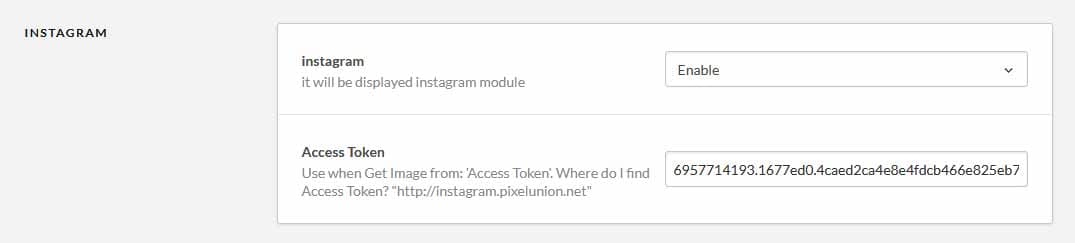
9. Instagram↑ Back to Top
Instagram contains seetings related to Instagram account.- Here two steps are available to get instagram access token.
1) Find this link "http://instagram.pixelunion.net" nd get access token.
2) Find this link "https://elfsight.com/blog/2016/05/how-to-get-instagram-access-token/" nd follow steps, there were you can get a access token.
10. CMS Parallax↑ Back to Top
CMS Parallax contains image, image url, tag, title, description.- CMS Parallax, das auf der Startseite angezeigt wird.
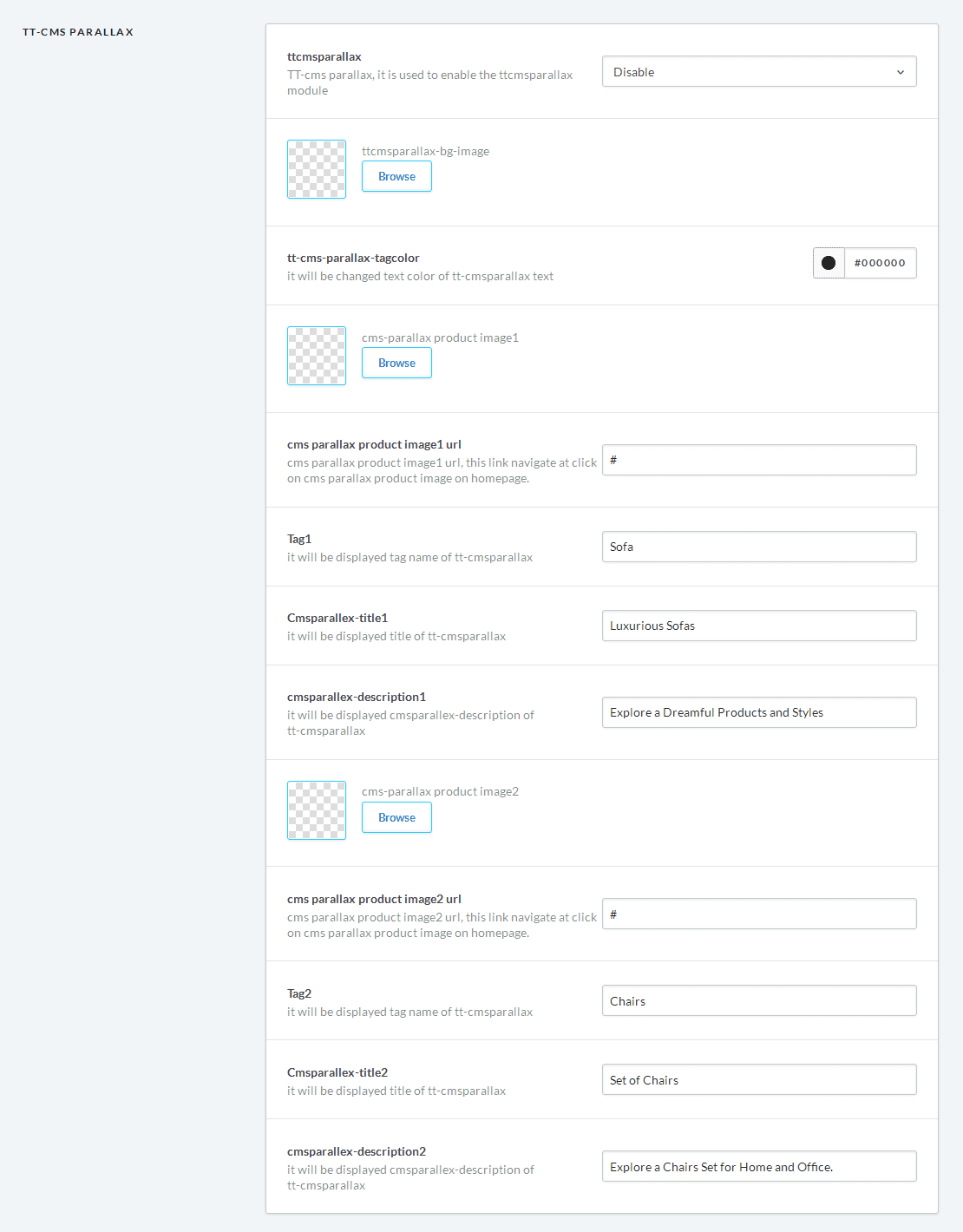
11. Left Banner↑ Back to Top
Left banner contains seetings related to sidebar banner.- left banner that display at sidebar of collection page that includes left banner image.
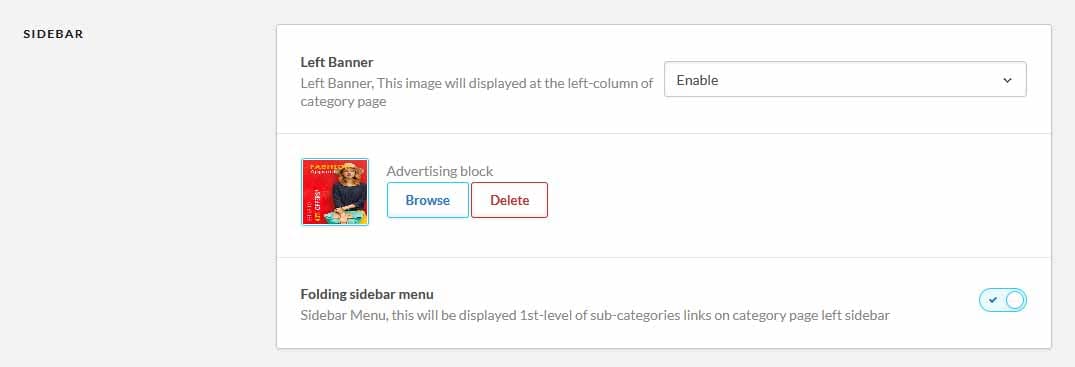
12. General settings↑ Back to Top
Color : Color settings are used to all links available in theme store.- This contains color of menu icon, body, topbar, topbar link, menu link, menu link hover, product name color, product name hover, price, footer title, footer link, footer link hover.

Border : Border settings are used for all Borders available in theme store.

Logo : Logo settings contains logo of theme store.
- Here you can upload theme logo and theme favicon.(logo image size must be 200px x 50px)

Contact Details : Contact details contains contact information of theme store.
- Here you add your company name, description, phone number and Email text.

Social : Add your URLs to specific social media to show the icons in the footer. Other than that leave blank.
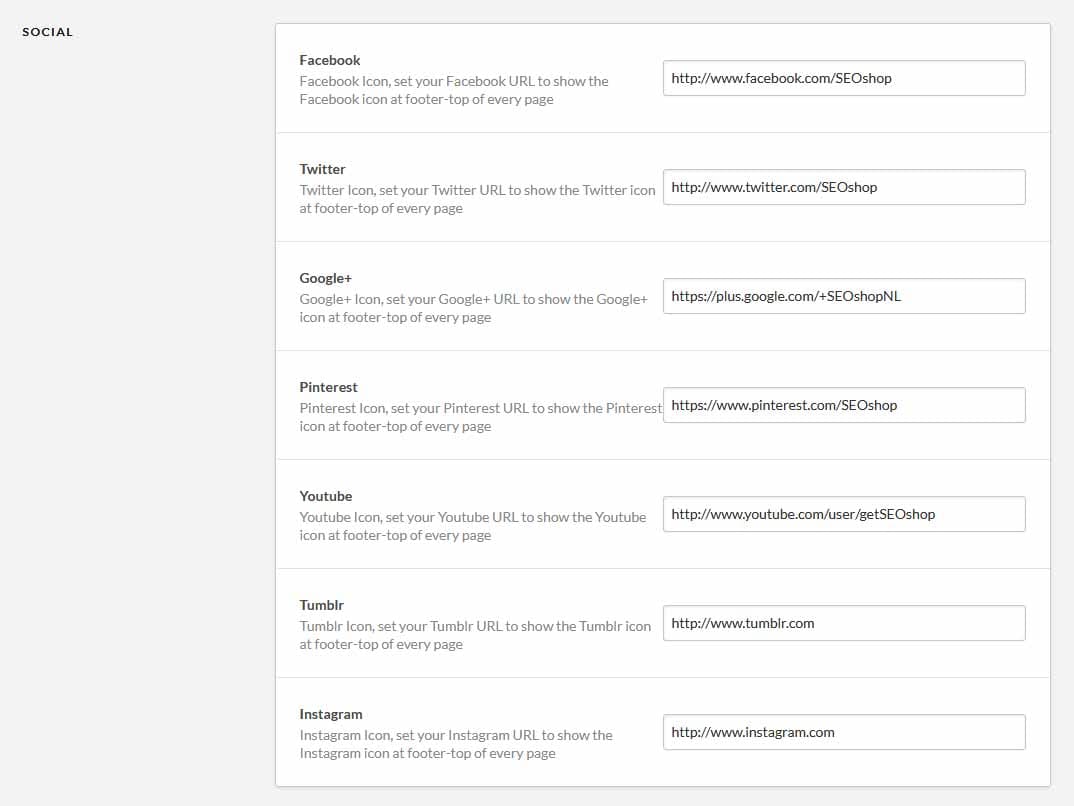
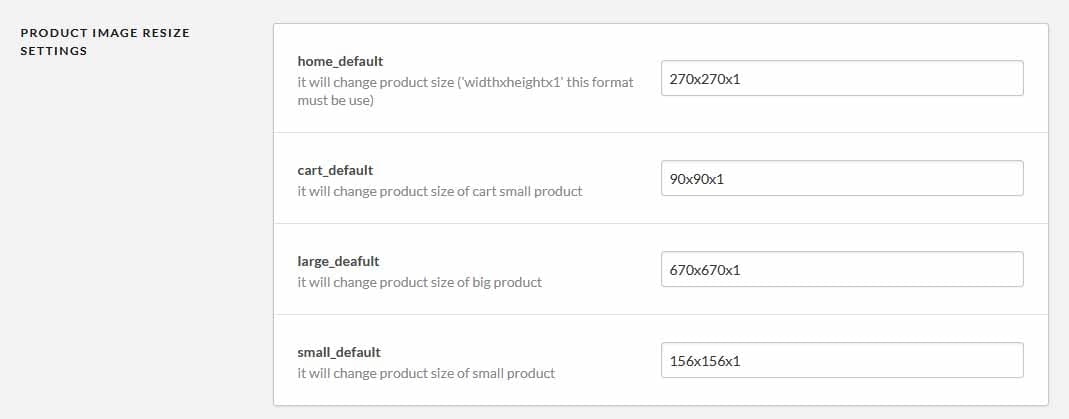
Product Image size settings : product image size settings contains size of product.
- Here you can modified your theme product image dimensions, in the format of (height x width x 1).